
.png?height=200&name=Blog%20Image%20Size%20(45).png)
Table of Contents Overview
Table of Contents
Add a New Organizational Manager
Overview
Once your organization has been onboarded to IDAdmin and the first Organizational Manager has been authorized, Organizational Managers can manage administrative access for their organization.
This includes:
- Adding additional Organizational Managers
- Adding User Admins
- Managing existing administrative permissions
Organizational Managers are responsible for managing administrative access on behalf of their organization.
Important: Organizational Managers cannot revoke their own Organizational Manager status.
Before You Begin
Before authorizing a new administrator, make sure:
- The individual has signed in to IDAdmin at least once
- The individual has their Admin ID available
- The individual has been approved by your organization for administrative access
Locate an Admin ID
Before adding a new administrator, you will need their Admin ID.
If the user is new to IDAdmin:
- Have the user sign-in in to IDAdmin.
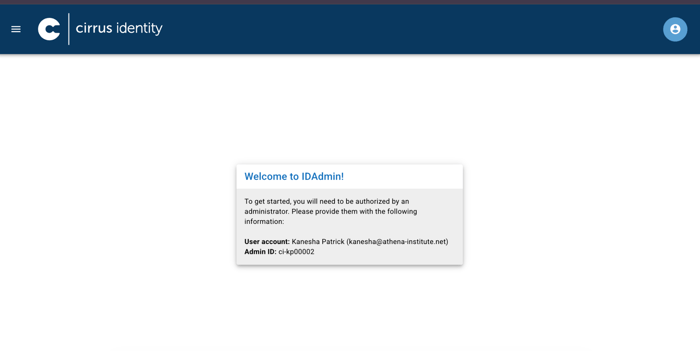
- After signing in, they will be presented with their Admin ID.
- Ask them to provide that Admin ID.
If the user has previously signed in:
- Sign- in to IDAdmin.
- Click your profile menu in the top-right corner.
- Select My Account.
- Locate the Admin ID listed on the account page.
Add a New Organizational Manager
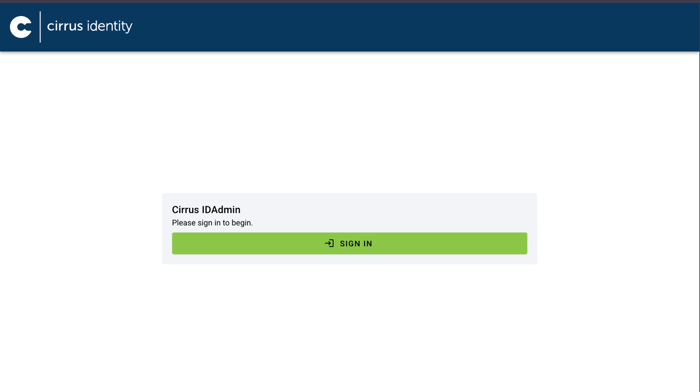
Step 1: Sign-in in to IDAdmin: idadmin.cirrusidentity.com
Sign in using your Organizational Manager credentials.
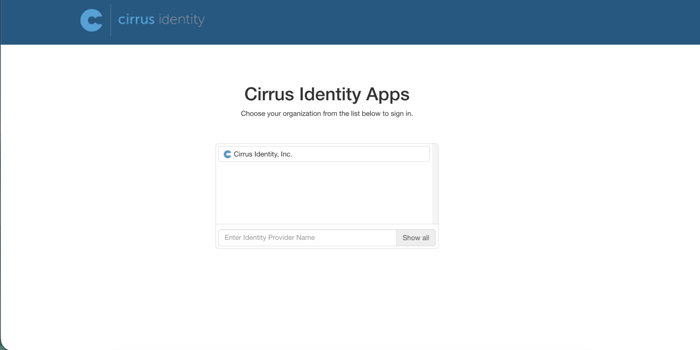
Step 2: Select Your Organization
Use the organization selector in the top navigation to choose the organization you want to manage.
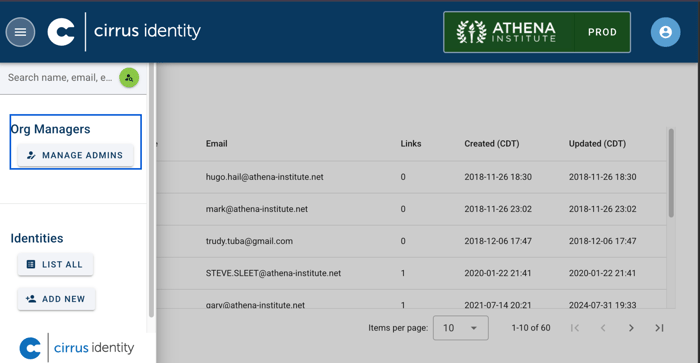
Step 3: Open Manage Admins
From the left-side navigation menu, select Manage Admins. This page displays your organization’s administrative users.
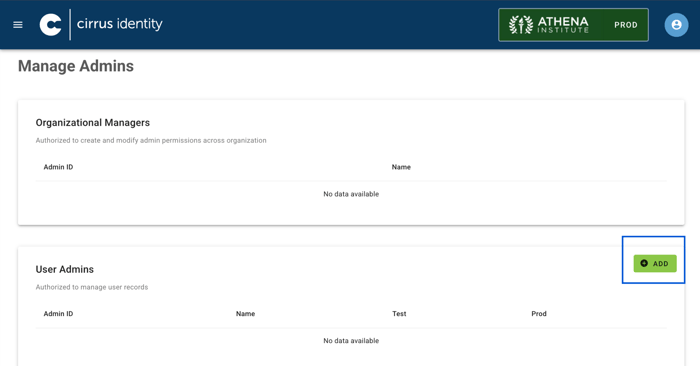
Step 4: Add a New Admin
Under the User Admins section, click Add.
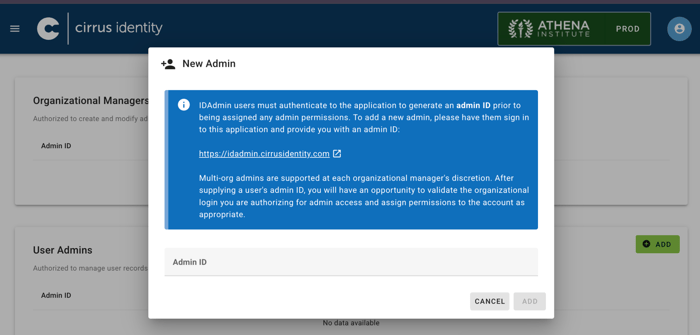
Step 5: Enter the Admin ID
Enter the Admin ID of the person you want to authorize.
Click Add.
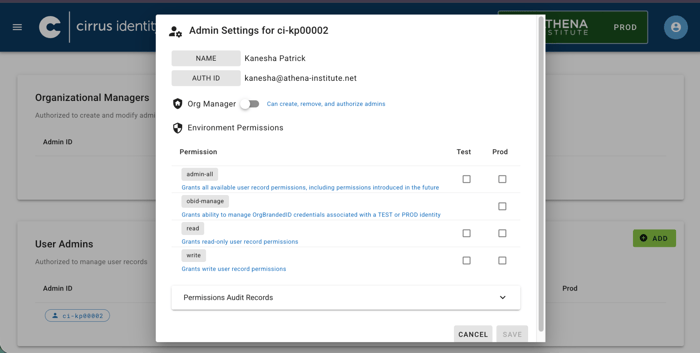
Step 6: Assign Organizational Manager Access
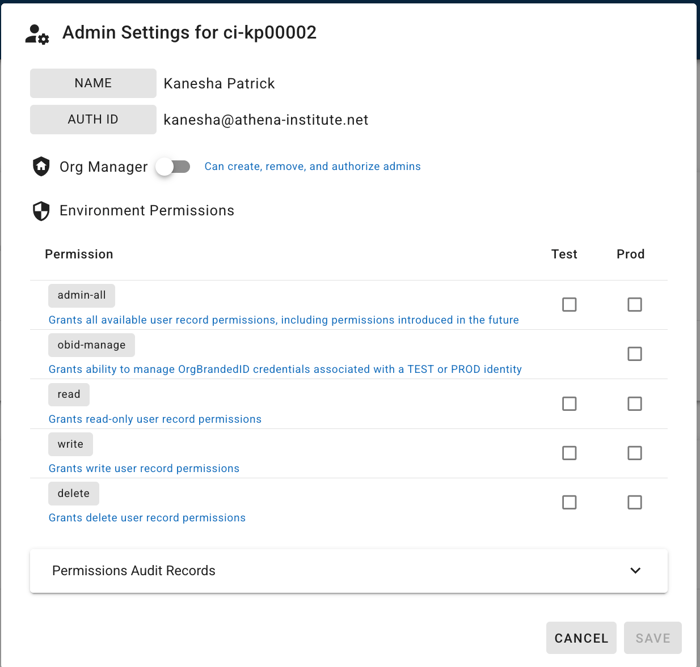
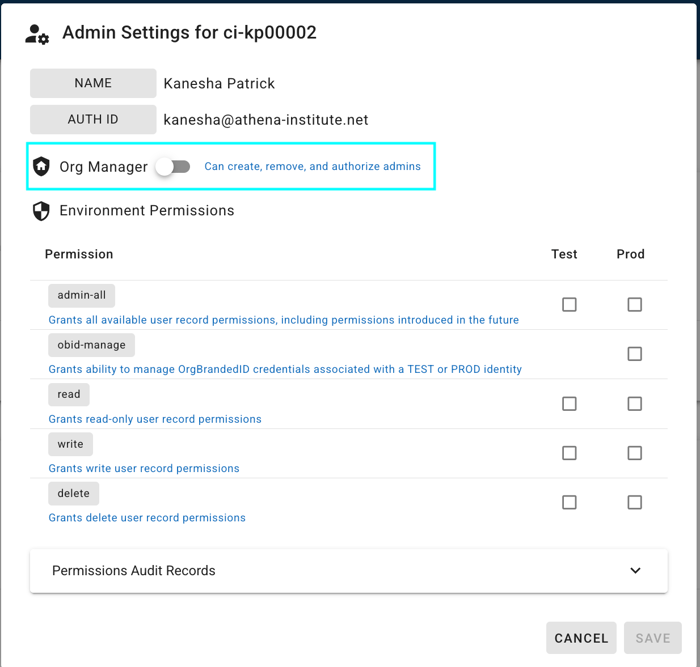
On the Admin Settings page:
- Toggle Org Manager to ON.
- Do not assign additional permissions unless needed.
- Click Save.
The new administrator will now have Organizational Manager access.
Add a User Admin
Please follow the same steps for Adding Organizational Manager, however, make sure to complete Step 4 when adding User Admin.
Step 1: Open Manage Admins
From the left navigation menu, select Manage Admins.
Step 2: Select Add
Under User Admins, click Add.
Step 3: Enter the Admin ID
Enter the Admin ID of the user you want to authorize.
Click Add.
Step 4: Assign Permissions
Leave the Org Manager toggle OFF.
Assign only the appropriate environment permissions.
Click Save.
The new administrator will now have User Admin access.
Managing Existing Admins
To review or update administrative access:
- Navigate to Manage Admins.
- Select the administrator.
- Update permissions as needed.
- Save changes.