Overview Use this API documentation for:
Table of Contents
Option 1: Information Node After Continue
Option 2: Acknowledge Node After Continue
Overview
IDWorkflow is designed for organizations that need a customized user interface (UI) for content presented to their users during the authentication process. It allows Global Admins to build and customize publicly accessible informational and redirect flows that Org Admins can maintain. You have the ability to create and manage your own workflows, or update content for existing Cirrus workflows.
Each workflow inherits institutional branding, supports Markdown and a text editor. A workflow can have as many nodes as desired. Use of IDWorkflow with the Cirrus Proxy or Bridge is the intended use case; however, you may also use it standalone with other solutions if desired.
Example Use Cases
IDWorkflow supports the following types of use cases:
- Help/Support Link:
- A help link could be placed on the Proxy to walk the user through guided information about how to get a guest account rather than provide explanation of all the options on the Discovery page.
- A support page can be created and integrated into the One-time Code MFA solution.
- Guide Users: With multiple Proxy deployments, one might generate a workflow with a series of options to guide users to the correct resource.
- Migration Support: A consistent link can be created that can change destination as your infrastructure changes.
- Lightweight disclaimers/terms of use: Put IDWorkflow in front of a service for a safe harbor disclosure or other acknowledgments before sending to a resource
- Acknowledgement: Build a simple page that requires the user to acknowledge a policy, safe harbor disclosure, or other acknowledgments or limitations before moving forward.
- Complex Customization: Cirrus interfaces intentionally limit customization options to support a consistent and proven user behavior flow. IDWorkflow provides options for additional flows or more complex customization for organizations that want it.
However, these use cases are not currently supported by IDWorkflow.
- Consent with Recorded Decision - The typical consent workflow where a decision is recorded is not currently supported by IDWorkflow.
- API integrations - IDWorkflow is not capable of interacting with infrastructure beyond simple web redirects.
- Authenticated flows or private workflows - IDWorkflow does not support content protected by authentication, so any workflow content is public. It is designed to provide content before authentication.
Step 1 - Create Workflow
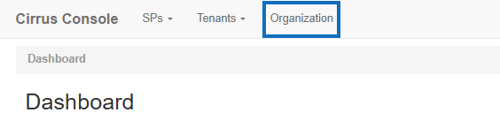
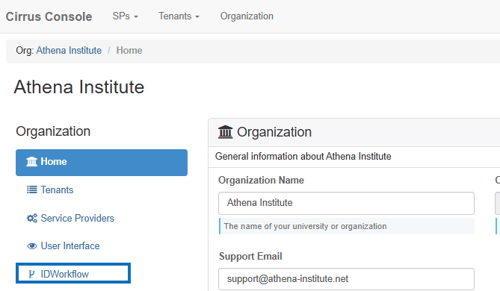
To access the IDWorkflow page, please go to your organization page via the top navigation bar and select IDWorkflow from the left navigation menu.
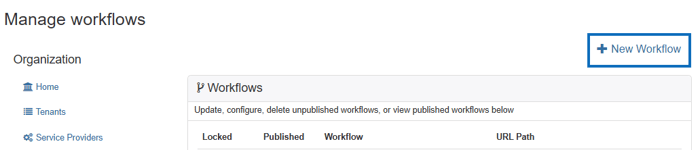
To create a new workflow, select the link for + New Workflow at the top of the page.
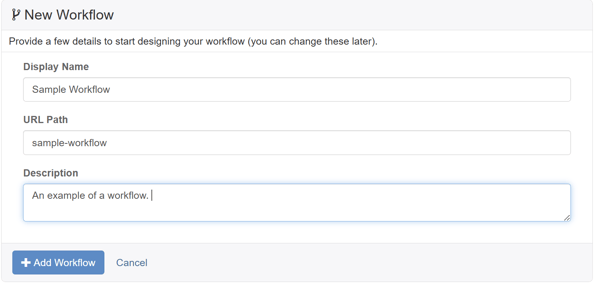
Next you will enter information about the new workflow and click the + Add Workflow button.
- The Display Name is used by your organization to identify the purpose of the workflow.
- The URL path is used in the link to access the workflow. One is automatically populated as you create a display name for the workflow.
- The description allows you to provide more information about the workflow such as what it does, audience, creators, and more.
Once the workflow has been created, it will show up in the list and is ready to be designed.

Step 2 - Design Workflow (New and Existing)
To design a new workflow or edit an existing workflow, select the Design icon  next to the listed workflow you would like to design. When you first enter the design screen, you will only see the Start node, which is where your workflow begins.
Note: Your workflow is automatically saved as you work.
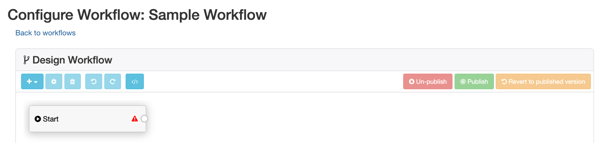
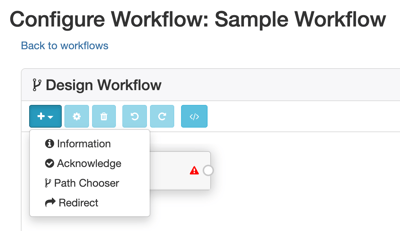
Next, add a new node to your workflow by click on the plus  icon and selecting a node type from the list.
- Information nodes display information to the user. Markdown can be used to edit the display text.
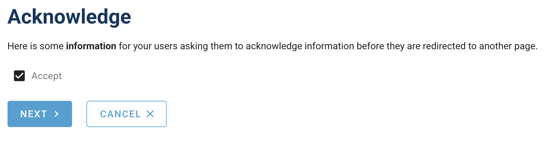
- Acknowledge nodes also display information to the user and also ask the user to check a box to acknowledge the information. At this time, the user’s acknowledgement is not recorded.
- Path Chooser nodes share common content and allow you to configure 1-5 options with specific content and behavior. Use this node type to branch your workflow into different paths based on a user's choice.
- Redirect nodes forward the user on to a url outside of the workflow, such as to a login page or another step in the process outside of this workflow.
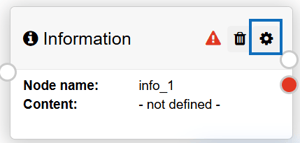
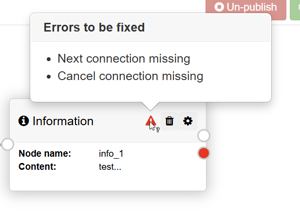
After you select the node it is created and will show on your screen. To configure each node, click on the gear  icon on the node. Additionally, the caution
  icon will appear on any node that needs to be fully configured. If you hover over the , the system will provide you with what is missing from the node.
Configure Node: Information
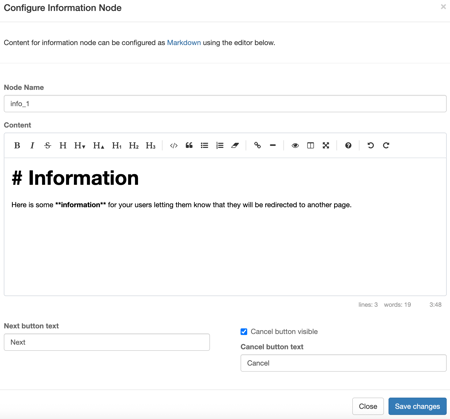
Information nodes display information to the user. Markdown can be used to edit the display text. Click on the gear icon to configure the node. Add the information to the Content area and optionally edit the information for the Next and Cancel buttons. Then select the Save changes button to save the node.
Configure Node: Acknowledge
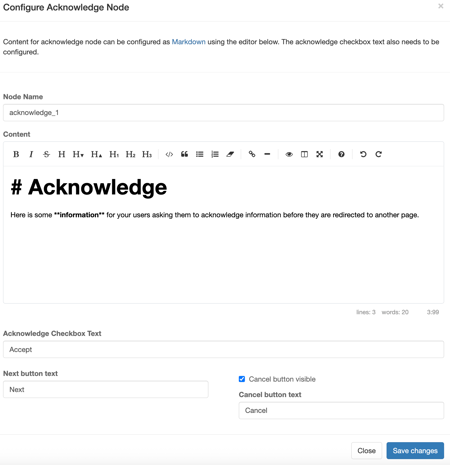
Acknowledge nodes also display information to the user and also ask the user to check a box to acknowledge the information. At this time, the user’s acknowledgement is not recorded. Click on the gear icon to configure the node. Add the information to the Content area and optionally edit the information for the Acknowledge Checkbox and the Next and Cancel buttons. Then select the Save changes button to save the node.
Configure Node: Path Chooser
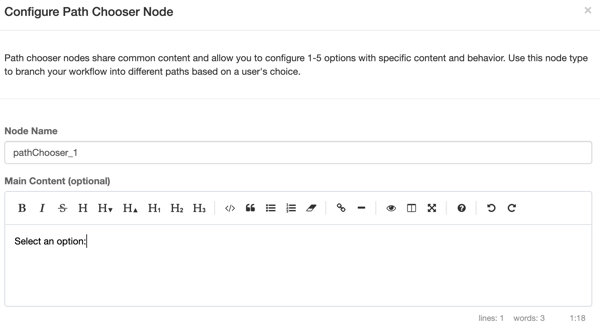
Path Chooser nodes share common content and allow you to configure 1-5 options with specific content and behavior. Use this node type to branch your workflow into different paths based on a user's choice. Click on the gear  icon to configure the node.
First, you can optionally add some main content before configuring the choices.
Next, configure the first option with a header and content.
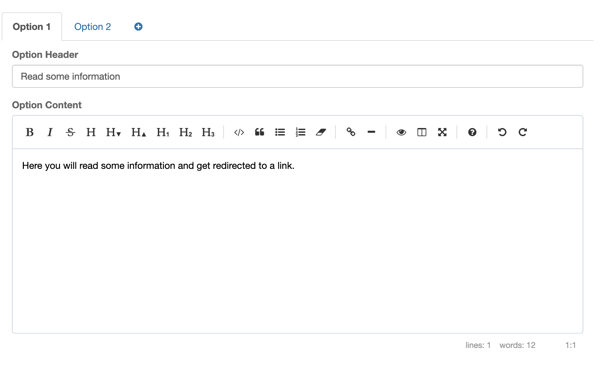
Next, configure the second option with a header and content.
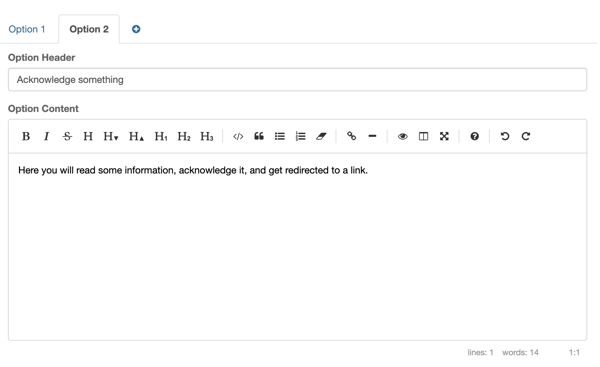
If you would like more options, click on the plus  icon to add up to three more options and configure them as you did the first two. Then review and optionally edit the option button text and select the Save changes button to save the node.

Configure Node: Redirect
Redirect nodes forward the user on to a url outside of the workflow, such as to a login page or another step in the process outside of this workflow. Click on the gear icon to configure the node. Add the redirect url and select the Save changes button to save the node.
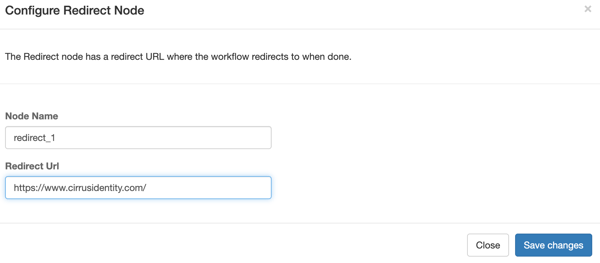
Connect the Nodes
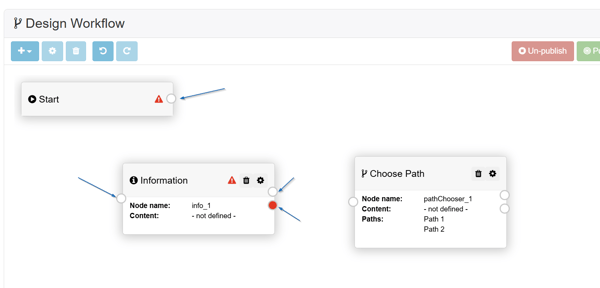
Once your nodes have been created, you can connect them by selecting the circular connector icon and dragging to connect with the left side circular node icon of the next node.
There are three circular node requirements:
- The white circular connector icon to the left of the node must be connected to the previous step in your workflow.
- The white circular connector icon to the right of the node must connect to the next step in the workflow. Even if this is the last step, every workflow must have a “redirect” node to end the workflow.
- The red circular node link on the right side of the node must always connect to a redirect node in the event the user cancels the workflow on that step so that the workflow knows where to redirect the user to. The nodes are able to all connect to the same redirect node.
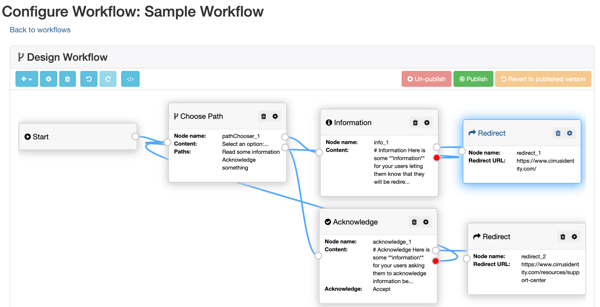
Below is an example of a fully connected workflow with no caution icons.
Step 3 - Publish Workflow
Now that your workflow has been created and connected without errors, the Publish button is now enabled. Select it now to Publish your workflow and make it live.

Now that it is published, you have the option to Un-publish, which disables the workflow. If you make changes to a published workflow, you can Publish Updates or Revert to the published version if you want to remove your changes and start over from the last published version.

Step 4 - Test Workflow
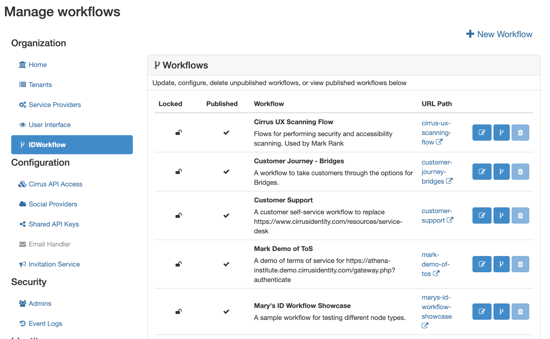
After you have published your workflow, the link to open the workflow is now enabled on the workflow list page and available on the top of the “Design Workflow” page.
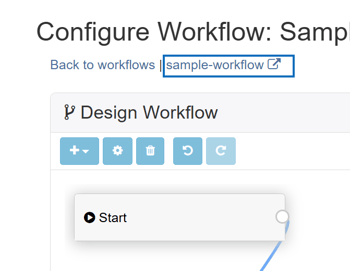 .
. 
Select the link to test. Below is a view of what the end user sees for each piece of the workflow.
On the far left side, you will see a lock icon. The lock icon means that Org Admins can change verbiage and republish locked workflows, but they cannot unpublish, delete, or modify the structure of the workflow. If you need a workflow unlocked that is currently locked or need a workflow to be locked, please submit a ticket to our HelpDesk.

View for End User Workflow
Path Chooser Node
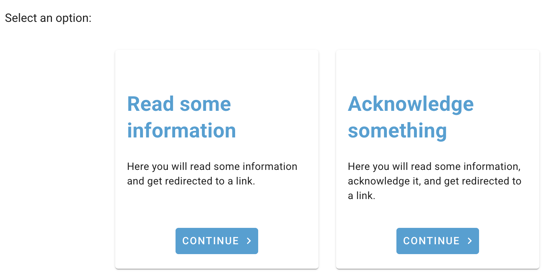
Option 1: Information Node After Continue
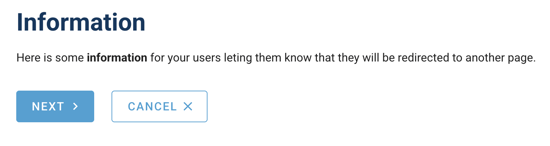
Option 1: Redirect After Next
Option 2: Acknowledge Node After Continue
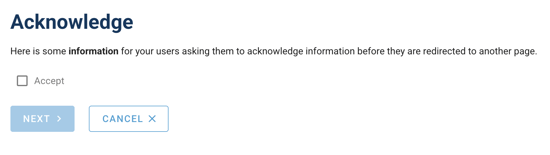
Option 2: Redirect After Next
Editing Name and Description of Workflow
Once your workflow has been created and tested, you have the ability to edit it. To edit existing workflows, select the Edit icon  next to the workflow you would like to edit from the list of workflows.
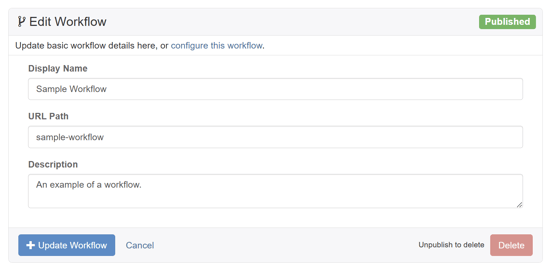
You will reach a screen that looks like the following. From here, you have four options:
- Edit the information about the workflow and click the +Update Workflow button.
- Edit the configuration of the Workflow by selecting the configure this workflow link. More information on configuring is outlined in the section above.
- Cancel the operation by clicking the Cancel button.
- Delete the workflow by clicking the Delete button. The delete button will be disabled if the workflow is published.
Organizational Branding
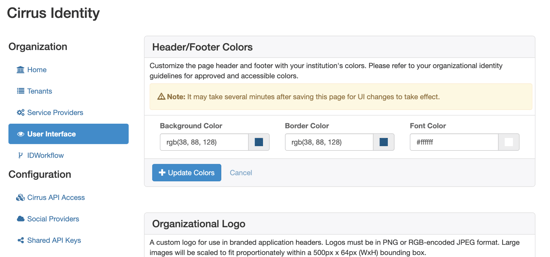
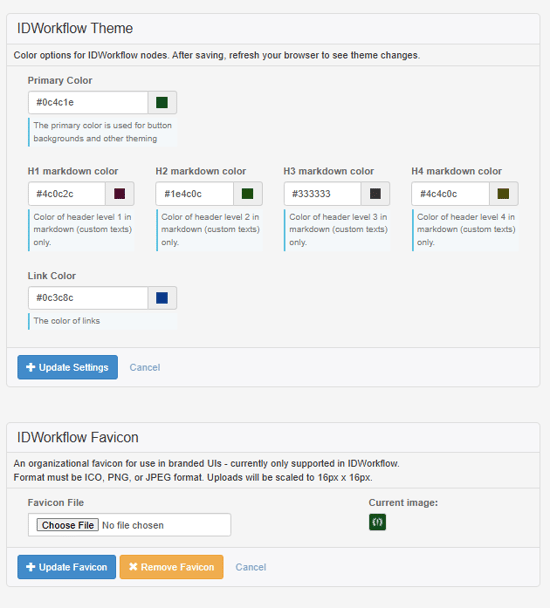
IDWorkflow utilizes the organizational branding options configured for your organization. From the Organization Page, select User Interface from the left menu to update your branding. At the bottom of the page, you will see information regarding IDWorkflow design components.