Cirrus Identity API Attribute Catalog Attribute Description batchId A customer provided identifier...
Customers who use the Cirrus Enterprise Bridge control attribute naming and the release of attributes from their IdP. Oftentimes they ask Cirrus for guidance with setting up their attributes. The following are attribute questions we are often asked during implementations, along with suggested solutions.
Note: Entra ID refers to attributes as claims. The examples provided below are from Cirrus’ Entra ID test environment, so I use the word claim. However, the words claim and attribute mean the same thing and can be used interchangeably in this document.
How do I separate an attribute that is represented as one string with delimited values so that it is asserted as a multi-valued attribute?
For example, in Entra ID, I have a claim named affiliation. Its value is a single string composed of a list of variables. See the example below.

I need the claim, affiliation, represented as multi-valued rather than one string value. Cirrus has created rules to do this.
Cirrus Claim Splitter Rules
|
Use Case |
Claim Name |
Example Claim Value |
|
Used to split a claim with a value of one string composed of a list of delimited values into a list of separate values. Specify the separator. The rule will look for a comma as the default if the separator is not explicitly included. Specify the claim(s) you wish to split. Claims should be separated with a semicolon The result will be the claim is split, and multi-valued. White space around split values is removed. In the example, the claims use '|' as the separator. The values of attr1 and attr2 will be split into lists. |
cirrus.rule.split |
separator=|, attributes= attr1; attr2 |
|
Used to split a claim with a value of one string composed of a list of delimited values. However, the resulting list is stored in another claim. The original claim’s value and format do not change. In the example, the value of claim csvAttr1 is split and stored in csvAttr2 and otherAttribute. csvAttr1 remains unchanged. Target claims are separated with ‘|’ |
cirrus.rule.split |
attributes=csvAttr1=>csvAttr2|otherAttribute1 |
|
Used to split a claim with a value of one string composed of a list of delimited values. The resulting list is stored in both a new claim and the original claim. In the example, attr3 is split and stored in both newName and attr3 |
cirrus.rule.split |
attributes=attr3==>newName |
Example Use Case
Here is how to apply the Cirrus rules to split the claim, affiliation, (from the above example) into a multi-valued variable:
Add the following claim and save.
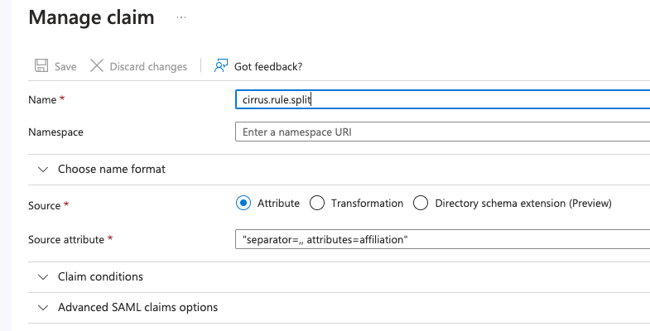
Below is the resulting assertion with affiliation now multi-valued. The rules are automatically applied when the Cirrus Bridge sends an SP the AuthN attribute bundle.

I can also keep the claim affiliation unchanged and create a new claim, affiliationNew, to contain the split values.
Using Cirrus rules, I add the following claim instead and saved it.
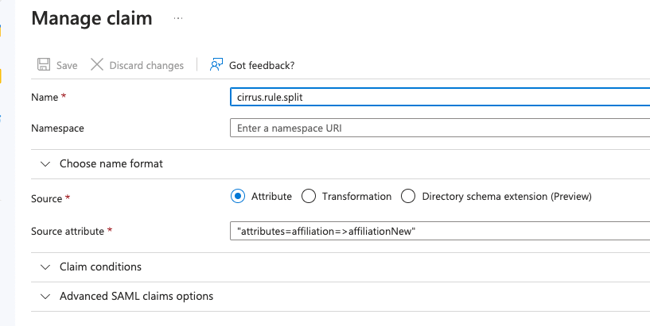
Upon authentication with the rule in place, there is a new claim, affiliationNew.
Here is what the assertion of affiliationNew looks like.

The original claim, affiliation, did not change.

Often, scope is added to claim to create eduPersonScopedAffiliation. Cirrus has a rule to help you build a claim with scope. See ‘How do I add scope to an attribute?’
How do I add scope to an attribute?
For simple cases, you can utilize your native IdP's append options when needing to add a scope to an attribute.
There are a couple of cases where using the Cirrus Scope Appender rule is needed for the IdP environment.
- The scope to add varies by user.
- The scope needs to be added after another Cirrus rule is run.
Cirrus has developed the following rules to enable you to append scope to a claim.
Cirrus Scope Appender Rules
|
Use Case |
Claim Name |
Example Claim Value |
|
Used to append scope to the value of a claim. In the example, the affil attributes will get the scope from urn:oid:1.3.6.1.4.1.5923.1.1.1.6 (ePPN) added to it - this is useful in cases where the scope can vary by individual / identity |
cirrus.rule.appendScope |
attributes=affil |
|
Used to append scope to the value of a claim where scope needs to be derived from a claim other than ePPN. When the operator => is used values are copied from the original claim to a new claim but the original claim is not changed. In the example, the scope is found from the value of claim scope1 . Scope is added to entitlement and to the values of affil but stored in scopedAffil. No changes are made to affil. |
cirrus.rule.appendScope |
attributes=affil=>scopedAffil; entitlement, scopeAttribute = scope1 |
|
Used to append scope to the value of a claim where scope needs to be explicitly assigned. When the operator ==> is used values are copied from the original claim to a new claim AND the original claim is also updated. In the example, the scope is explicit.edu and the claim entitlement is scoped and stored both in the claim entitlement and a new claim scopedEnt |
cirrus.rule.appendScope |
attributes=; entitlement==>scopedEnt, scope = explicit.edu |
Example Use Case
Here is an example use case using the append scope rules. In this example, my claim only has a single value to which I want to append scope. It is not multi-valued.
I need to add scope to the value of a claim, affiliation, but I only want to store the scoped value in a new claim, urn:oid:1.3.6.1.4.1.5923.1.1.1.9 (eduPersonScopedAffiliation), and I need to explicitly specify the scope as ‘explicit.edu’.
Here is what the claim with the scope append rule would look like in Entra ID.
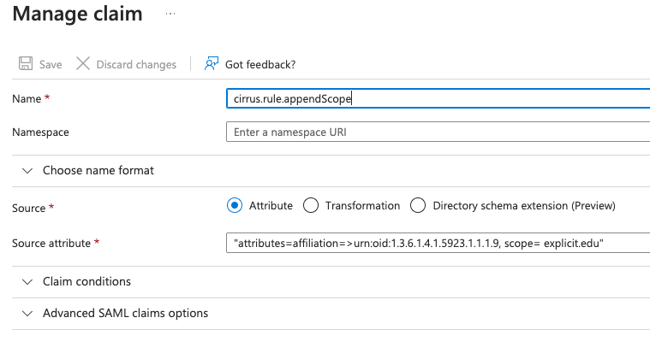
The resulting attributes released would look like the following:

Affiliation is unchanged and there is a new attribute named urn:oid:1.3.6.1.4.1.5923.1.1.1.9 with a scoped value of member@explicit.edu.
What if I need to split a claim AND append scope to it?
When using the split and append scope rules together you need to specify the order the rules should execute.
If you are splitting and appending, you will need to perform the split first. Order of operations is indicated in the name of the claim. The name of the claim for the split rule would change from claim.rule.split to claim.rule.1 and the value would need to include rule=split.
Here is a use case that splits a claim and adds scope to it.
The claim affiliation (pic below) has the value of a single string composed of a list of variables. I need to split the claim so that it is multi-valued, append a scope derived from ePPN to the values and store the scoped values in a new claim called urn:oid:1.3.6.1.4.1.5923.1.1.1.9.
Example Use Case
Here is how to use the split and append scope rules to meet the use case requirements.
First, I will add the rule to split the claim and indicate I want this rule to process first.
Here is what that claim with the ordered split rule looks like in Entra ID.
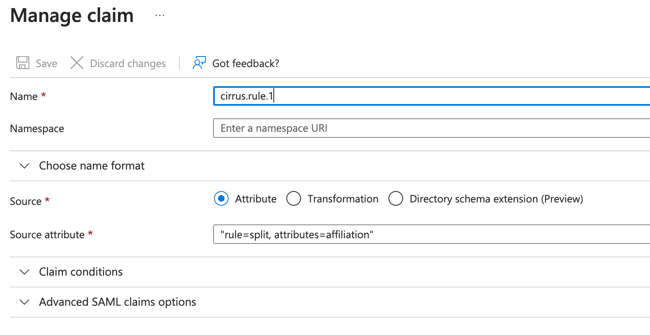
Here are those claims in the assertion with the rule applied.

Next, we need to append the scope to the multivalued list and store it in in a new claim called urn:oid:1.3.6.1.4.1.5923.1.1.1.9 (eduPersonScopedAffiliation.)
The claim with the rule to append the scope should execute second, so we will need to represent it as claim.rule.2 and add rule=appendScope to the value.
Here is what the claim with the appendScope rule looks like in Entra ID:
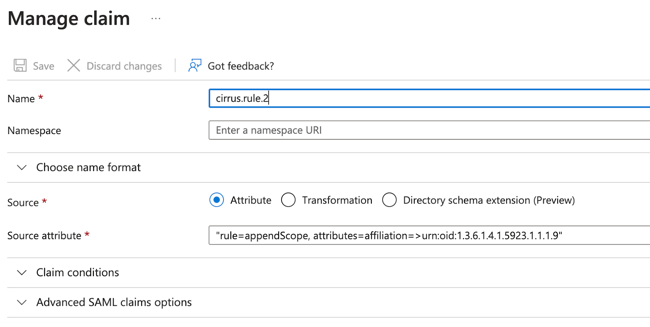
Note: This used ePPN for the scope, which is the default setting.
Below are the asserted claims with the rules applied.
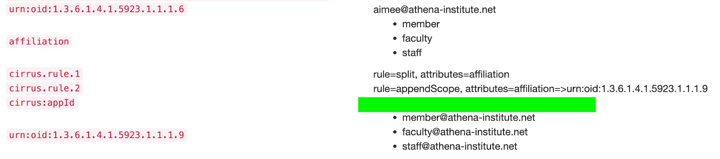
Affiliation is multivalued but with no appended scope.
A new claim, urn:oid:1.3.6.1.4.1.5923.1.1.1.9 (eduPersonScopedAffiliation), is created with the scoped values from the claim affiliation. The scope was derived from urn:oid:1.3.6.1.4.1.5923.1.1.1.6 (eduPersonPrincipalName a.k.a. ePPN) shown.
How Do I Merge attributes into a Destination Attribute?
Merge the values of one or (more) source attributes into a destination attribute. If the specified destination attribute does not already exist, it is created. Existing destination attribute values are kept.
If a specified source attribute name ends with .*, that indicates to merge the values of all attributes names beginning with that prefix. For example a source attribute name of cirrus.attr.affil.* would merge the values of attributes named cirrus.attr.affil.student, cirrus.attr.affil.faculty, etc. (assuming those attributes are present in the set of asserted attributes). If a source attribute is multi-valued, all unique values will be merged into the destination attribute.
Required Settings:
- attributes: The list of source attributes to merge into the destination attribute. Multiple attribute names should be ; separated.
- dest: The destination attribute into which to merge the values of all source attributes from attributes
Cirrus Attribute Merge Rules
|
Use Case |
Claim Name |
Example Claim Value |
|
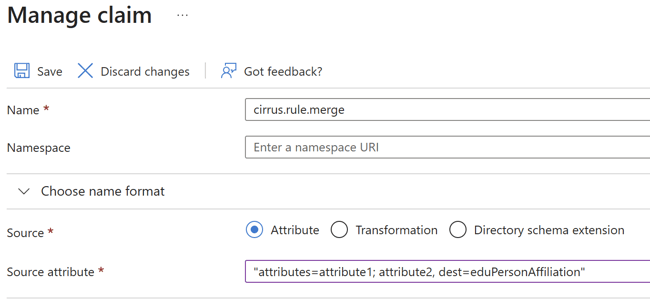
In the example, the eduPersonAffiliation attribute will get the values of attribute1 and attribute2 merged into it |
cirrus.rule.merge |
attributes=attribute1; attribute2, dest=eduPersonAffiliation |
|
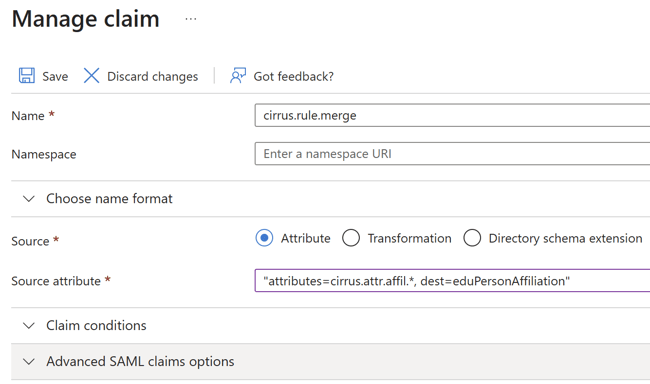
In the example, the values of all attributes begin with cirrus.attr.affil. will be merged into the eduPersonAffiliation attribute. |
cirrus.rule.merge |
attributes=cirrus.attr.affil.*, dest=eduPersonAffiliation |
|
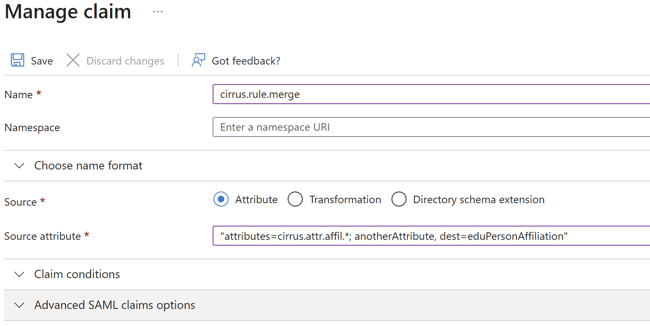
In the example, the values of all attributes begin with cirrus.attr.affil. will be merged into the eduPersonAffiliation attribute, along with the value of anotherAttribute. |
cirrus.rule.merge |
attributes=cirrus.attr.affil.*; anotherAttribute, dest=eduPersonAffiliation |
Example Use Case
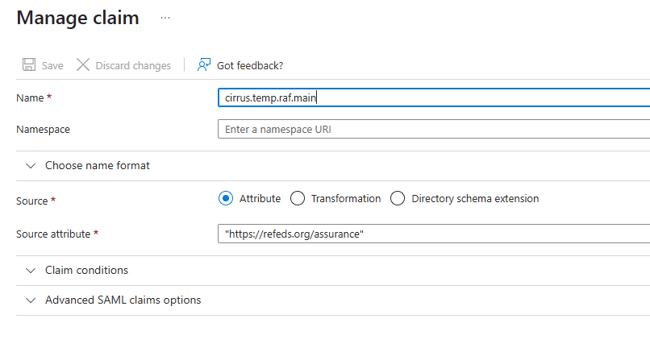
A series of attributes for the individual aspects of RAF V2 will be grouped together in the multivalued attribute eduPersonAssurance. First the values of each individual value must be defined in a series of temporary attributes. For example, the initial attribute will be “cirrus.temp.raf.main” and will indicate the base RAF V2 support with a statically defined value of “https://refeds.org/assurance”. See the following screenshot from the Entra ID Enterprise App configuration:
NOTE - Consult the RAF V2 Specification (https://refeds.org/wp-content/uploads/2023/12/RAF-2.0-Final-version.pdf) and/or the InCommon Recommendations document (https://spaces.at.internet2.edu/spaces/TI/pages/350159280/TI.180.1) for the values needed to implement other scenarios.
A total of six (6) temporary attributes need to be defined for the assumed scenario. The following table lists the attribute names and values needed for the assumed scenario:
|
Attrib Name |
Attrib Value |
|---|---|
|
cirrus.temp.raf.main |
https://refeds.org/assurance |
|
cirrus.temp.raf.version |
https://refeds.org/assurance/version/2 |
|
cirrus.temp.raf.id |
https://refeds.org/assurance/ID/unique |
|
cirrus.temp.raf.id-eppn |
https://refeds.org/assurance/ID/eppn-unique-no-reassign |
|
cirrus.temp.raf.atp |
https://refeds.org/assurance/ATP/ePA-1m |
|
cirrus.temp.raf.iap |
https://refeds.org/assurance/IAP/local-enterprise |
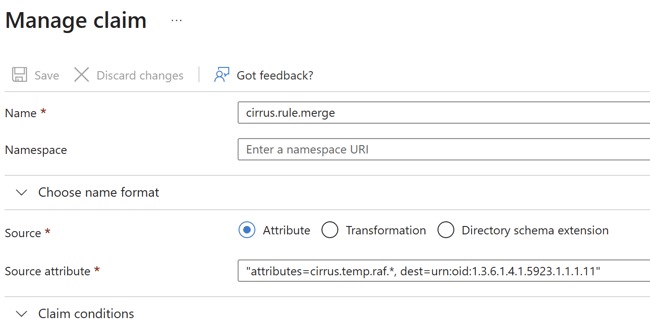
The merge rule syntax is indicating that all attributes starting with “cirrus.temp.raf.” should be combined into a multivalue attribute and asserted as the urn:oid:1.3.6.1.4.1.5923.1.1.1.11 attribute name.
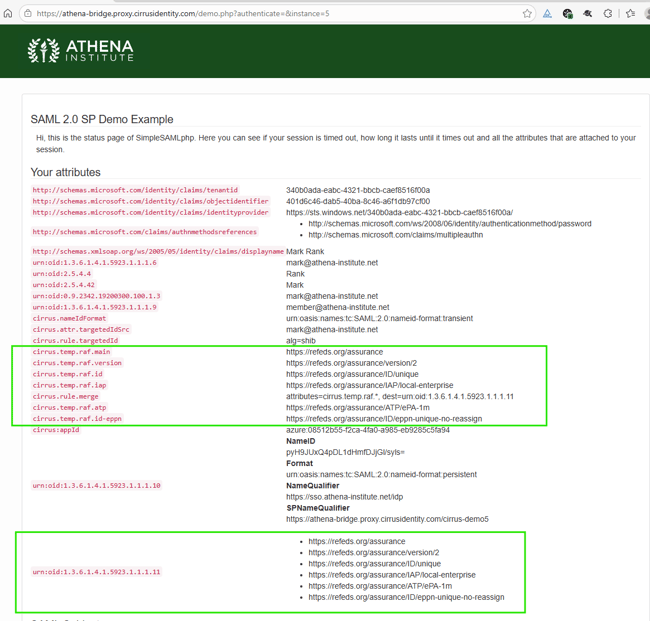
You can test this by utilizing the test URL from the Console which will then show you the attributes and what they are being asserted as. You can see in the screenshot below how this example asserts to the Cirrus Bridge.
Additional Options For Merge Rule Use Case